
So we will create custom ListView in which each list item will have Country flag, Country name and its capital in different font size as below.
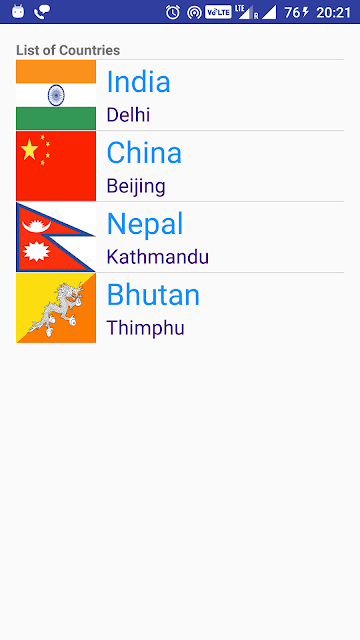
It is widely used in android apps to list number of items and select one or more items from the list.
Source code:
Step 1 :Creating Project
Create an android application project named “CustomListViewExampleApp”.
Step 2 : Creating Layout
Change res ->layout -> activity_main.xml as below:
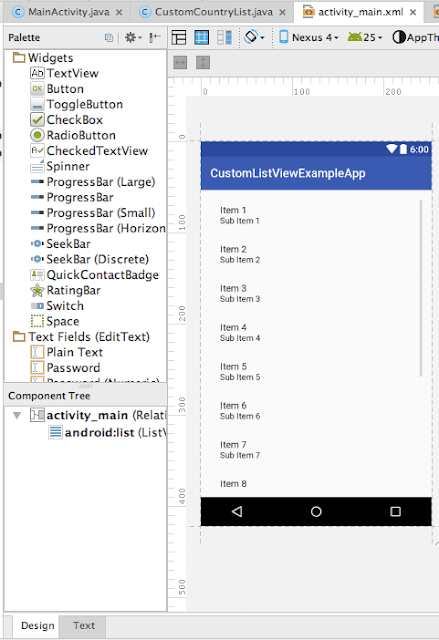
You will see below screen in design view.
Step 3: Creating layout for Row
- Go to res -> layout
- right click on layout
- Click on New -> File.
- Create a file named “row_item.xml” and paste below code in row_item.xml.
Step 4 : Creating ArrayAdapter for ListView
package com.java2blog.customlistviewexampleapp;

import android.app.Activity;
import android.content.Context;
import android.view.LayoutInflater;
import android.view.View;
import android.view.ViewGroup;
import android.widget.ArrayAdapter;
import android.widget.ImageView;
import android.widget.TextView;

import com.java2blog.customlistviewexampleapp.R;

public class CustomCountryList extends ArrayAdapter {
    private String[] countryNames;
    private String[] capitalNames;
    private Integer[] imageid;
    private Activity context;

    public CustomCountryList(Activity context, String[] countryNames, String[] capitalNames, Integer[] imageid) {
        super(context, R.layout.row_item, countryNames);
        this.context = context;
        this.countryNames = countryNames;
        this.capitalNames = capitalNames;
        this.imageid = imageid;

    }

    @Override
    public View getView(int position, View convertView, ViewGroup parent) {
        View row=convertView;
        LayoutInflater inflater = context.getLayoutInflater();
        if(convertView==null)
            row = inflater.inflate(R.layout.row_item, null, true);
        TextView textViewCountry = (TextView) row.findViewById(R.id.textViewCountry);
        TextView textViewCapital = (TextView) row.findViewById(R.id.textViewCapital);
        ImageView imageFlag = (ImageView) row.findViewById(R.id.imageViewFlag);

        textViewCountry.setText(countryNames[position]);
        textViewCapital.setText(capitalNames[position]);
        imageFlag.setImageResource(imageid[position]);
        return  row;
    }
}
This class is used to populating data for ListVIew. getView method is get called for drawing each row.
Step 5 : Creating MainActivity
Change src/main/packageName/MainActivity.java as below:
package com.java2blog.customlistviewexampleapp;

import android.app.ListActivity;
import android.graphics.Typeface;
import android.os.Bundle;
import android.view.View;
import android.widget.AdapterView;
import android.widget.ListView;
import android.widget.TextView;
import android.widget.Toast;

import com.java2blog.customlistviewexampleapp.CustomCountryList;
import com.java2blog.customlistviewexampleapp.R;

public class MainActivity extends ListActivity {

    private ListView listView;
    private String countryNames[] = {
            "India",
            "China",
            "Nepal",
            "Bhutan"
    };

    private String capitalNames[] = {
            "Delhi",
            "Beijing",
            "Kathmandu",
            "Thimphu"
    };

    private Integer imageid[] = {
            R.drawable.india,
            R.drawable.china,
            R.drawable.nepal,
            R.drawable.bhutan

    };

    @Override
    protected void onCreate(Bundle savedInstanceState) {
        super.onCreate(savedInstanceState);
        setContentView(R.layout.activity_main);

        // Setting header
        TextView textView = new TextView(this);
        textView.setTypeface(Typeface.DEFAULT_BOLD);
        textView.setText("List of Countries");

        ListView listView=(ListView)findViewById(android.R.id.list);
        listView.addHeaderView(textView);

        // For populating list data
        CustomCountryList customCountryList = new CustomCountryList(this, countryNames, capitalNames, imageid);
        listView.setAdapter(customCountryList);

        listView.setOnItemClickListener(new AdapterView.OnItemClickListener() {
            @Override
            public void onItemClick(AdapterView adapterView, View view, int position, long l) {
                Toast.makeText(getApplicationContext(),"You Selected "+countryNames[position-1]+ " as Country",Toast.LENGTH_SHORT).show();        }
        });
    }
}
If you notice, we have extended to ListActivity for this class. ListActivity class provides some methods specific to ListView.
We have declared three arrays to take care of Country textView, Capital textView and flag ImageView and customCountryList is being used to populate data in ListView.
Step 6: Put images in drawable folder
Download source code, locate res -> drawable and put images in your application ‘s res -> drawable folder.
Step 7 : Running the app
When you run the app, you will get below screen:
When you click on Bhutan list item, you will get below screen: